Help & Documentation
About WhatnotAutoPrint
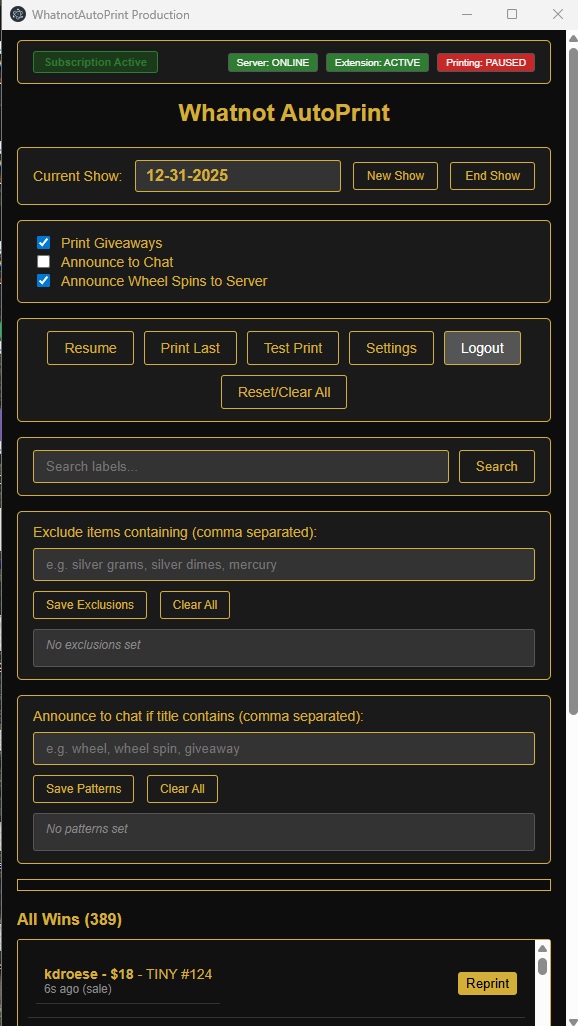
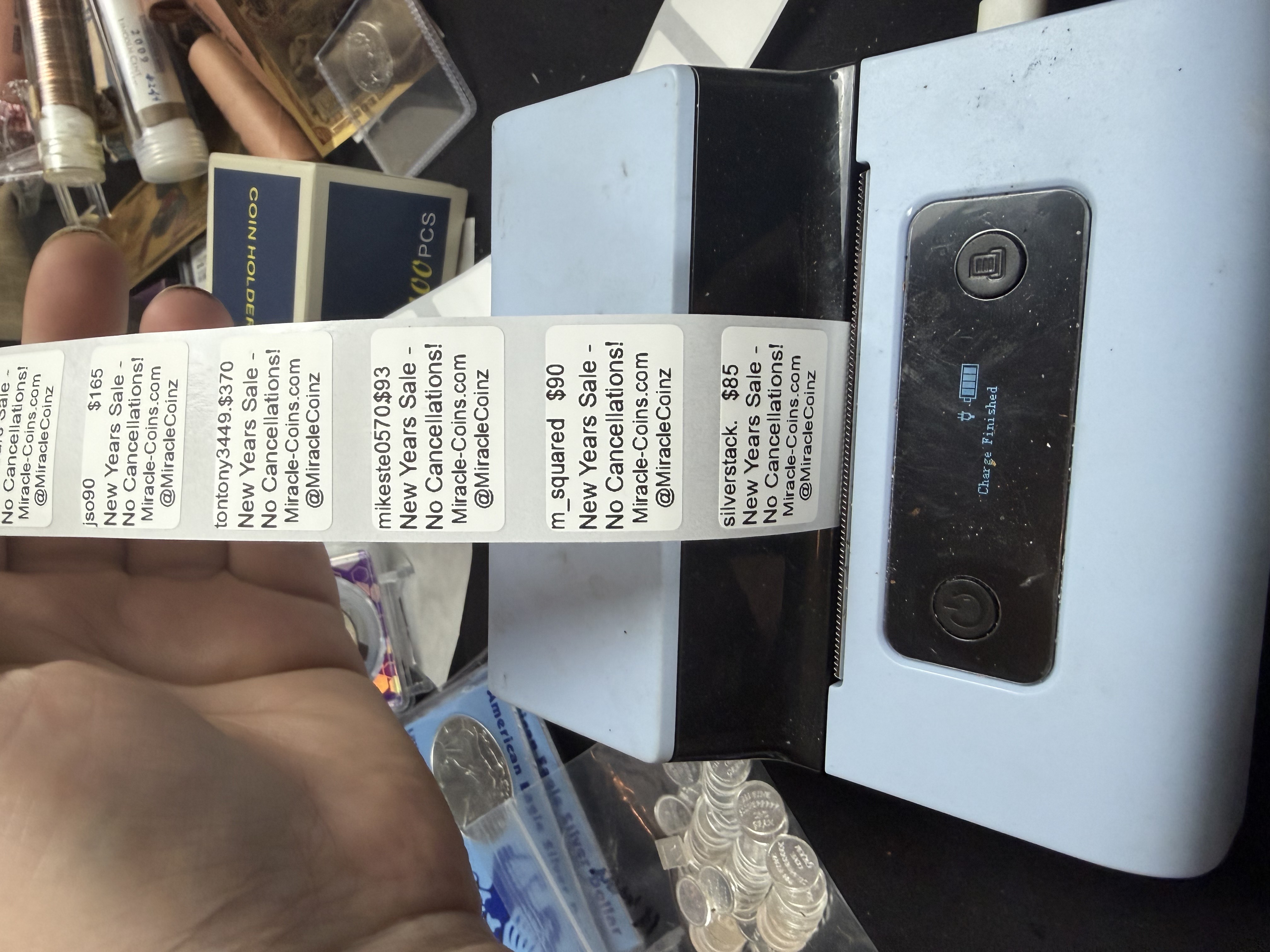
WhatnotAutoPrint is configured for Phomemo and Brother printers with support for multiple label sizes. The program automatically detects auction wins on Whatnot.com and prints shipping labels for your orders.
Printer Configuration:
- Supported Printers: Phomemo and Brother printers
- Pre-configured Label Sizes: 30mm×20mm, 0.7"×2.1", and 2.4"×1.1"
- Customizable: Additional label sizes can be configured as needed
Quick Start Guide
1. Create an Account
Visit the subscription portal to create your account. You'll need an email address and name.
2. Subscribe
Choose the monthly plan ($19.95/month) and complete the checkout process through Stripe. Use code "BetaDiscount" for 75% off (first 50 customers only). Your subscription will activate immediately after payment.
3. Download and Install
Download the complete package (desktop app + extension) from your dashboard. Install both the desktop application and Chrome extension, then sign in with your account.
4. Start Printing
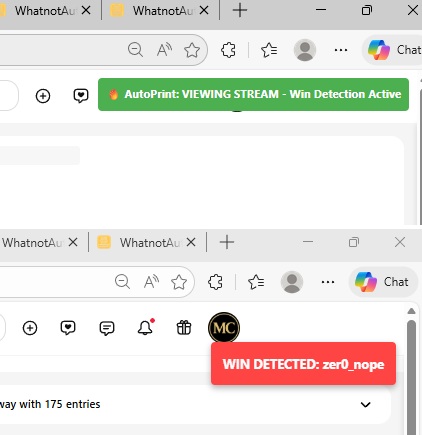
Once installed and connected, your prints will be processed automatically as orders come in on Whatnot.com. No additional configuration needed!
Troubleshooting
Printer Not Printing?
If the printer doesn't print initially:
- Turn the printer off
- Unplug it from power
- Wait a few seconds
- Plug it back in and turn it on
If printing still doesn't work: Use the manual print button in the desktop application to print labels manually.
Extension Missing Prints?
If the extension is missing a lot of prints:
- First: Reload the browser (refresh the Whatnot.com page)
- If it continues: Clean up and reset the browser
- Then: Reload the extension
This usually resolves connection issues between the extension and the desktop application.
General Tips
- Make sure the desktop application is running before using the extension
- Ensure you're signed in to the desktop application
- Check that the printer is powered on and has labels loaded
- Configured for Phomemo and Brother printers with support for 30mm×20mm, 0.7"×2.1", and 2.4"×1.1" label sizes
- Keep both the desktop app and browser extension updated
Frequently Asked Questions
What printer do I need?
WhatnotAutoPrint is configured for Phomemo and Brother printers with pre-configured support for 30mm×20mm, 0.7"×2.1", and 2.4"×1.1" label sizes. Additional label sizes can be customized as needed.
How does automatic printing work?
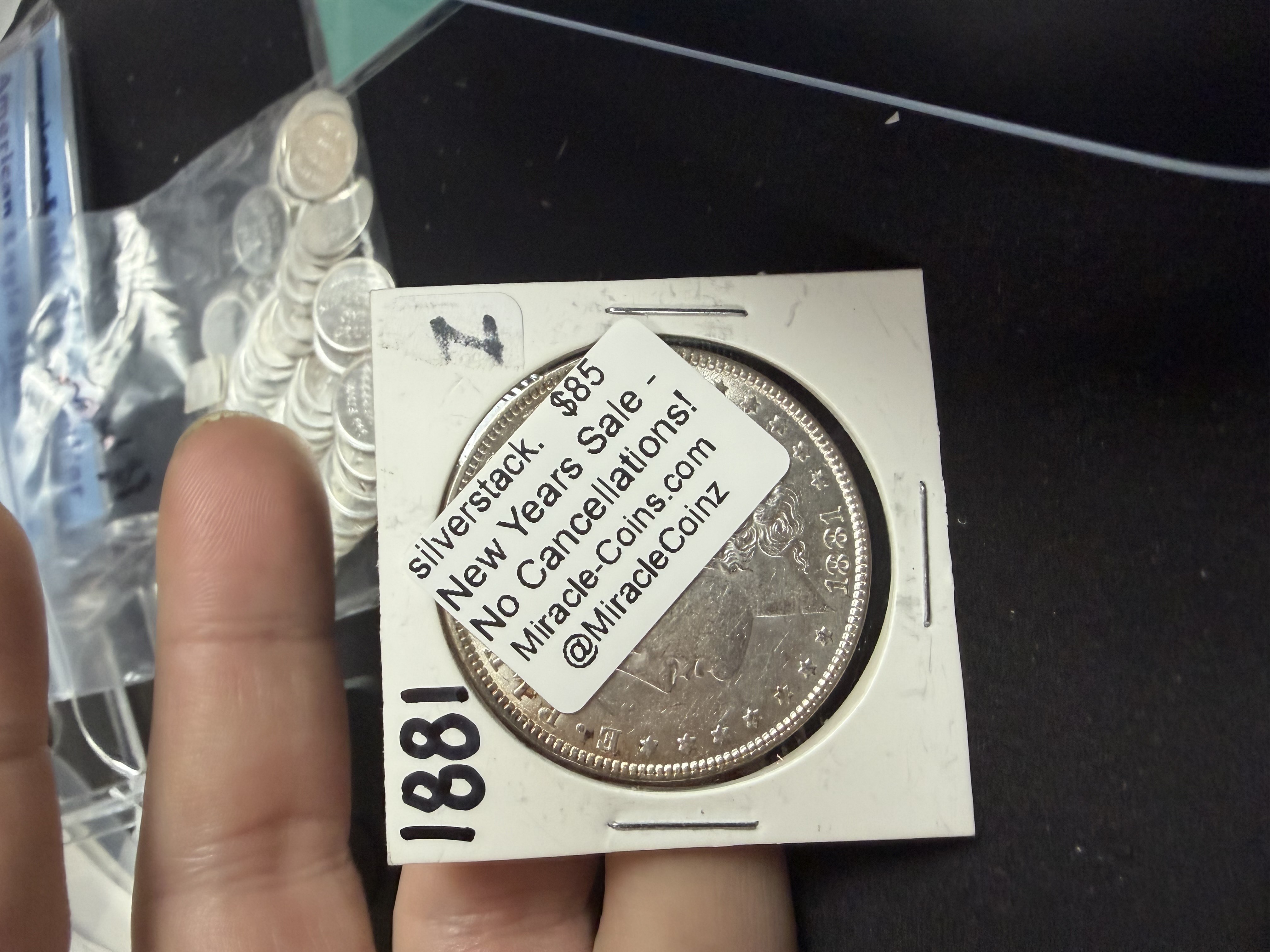
The Chrome extension monitors Whatnot.com for auction wins. When you win an auction, it automatically sends the order information to the desktop application, which generates and prints the shipping label on your Phomemo or Brother printer.
Can I cancel my subscription anytime?
Yes! You can cancel your subscription at any time through the billing portal. Your subscription will remain active until the end of the current billing period.
What payment methods do you accept?
We accept all major credit cards, debit cards, and other payment methods supported by Stripe. Payments are processed securely through Stripe.
Do you offer refunds?
We offer a 30-day money-back guarantee for new subscriptions. If you're not satisfied, contact our support team for a full refund within the first 30 days.
How do I manage my subscription?
Sign in to the subscription portal and click "Manage Billing" to update your payment method, view invoices, or cancel your subscription.
🎡 Wheel System
WhatnotAutoPrint includes a powerful Interactive Wheel System that automatically detects wheel spins and can integrate with our exclusive Givie Giveaway System for comprehensive prize management.
Main Wheel Features
- Auto Detection: Automatically detects and interacts with the wheel server to track spins in real-time
- Chat Announcements: Automatically announces wheel spins to your chat with winner information
- Manual Control: Manual spin button for triggering wheel spins when needed
- Visual Interface: Complete wheel GUI showing all segments and prizes


🎁 Givie Giveaway System
The Givie system is a powerful giveaway game that integrates seamlessly with the wheel system. It allows you to run engaging giveaways with presence tracking and tiered prize distribution.
How the Givie System Works
1. Name Collection
Start a Givie session and easily collect all participant names. The system provides a dedicated interface for managing participant lists during your giveaway.
2. Presence Tracking
Mark viewers as present or not present during the giveaway. This feature helps you reward active participants who are actually watching your stream.
3. Tiered Prize Distribution
The system uses a smart prize distribution method:
- First 1-10 Winners: The first 1-10 participants (depending on how many prizes you're offering) receive bigger, premium prizes
- Present Viewers: Viewers marked as present get better prizes than those marked as not present
- Fair Distribution: Ensures active participants are rewarded appropriately
4. Wheel Integration
The Givie system seamlessly integrates with the wheel for visual prize selection, making your giveaways more engaging and interactive for your audience.

Givie Spins Window - Manage your giveaway session

Name Collection - Collect and manage participant names

Presence Tracker - Mark viewers as present or not present
Why Use Givie?
- Reward active viewers who are present during your streams
- Encourage early participation with premium first-place prizes
- Fair and transparent prize distribution
- Easy name collection and management
- Seamless integration with the wheel system for visual appeal
Need More Help?
If you can't find the answer you're looking for, please contact our support team.